
A verified default keyboard and mouse binding chart for Hood Warfare 2 is not available here. Use any bindings or interaction prompts your installed game displays instead of assuming that another shooter's keys apply. Full controller support is listed for the PC release, but that does not establish a universal button layout.
Check the action before memorizing a key
Separate an action you need from the key or button assigned to it. If your game exposes a bindings screen, read the entry there; during a match, use an on-screen prompt when one is displayed. This avoids turning a familiar key into a claim about the game's defaults.
| Task | What to verify in your installed game |
|---|---|
| Move and look around | Which inputs move the character and turn the view |
| Use your weapon | The inputs for firing and any other weapon actions actually offered |
| Complete an interaction | The prompt or binding for the specific action at the objective |
| Change a loadout | The controls presented in the loadout interface |
| Navigate menus | How selection, confirmation and returning work on your active device |
The table is a check list, not a default key chart. It intentionally leaves keys and buttons unspecified.
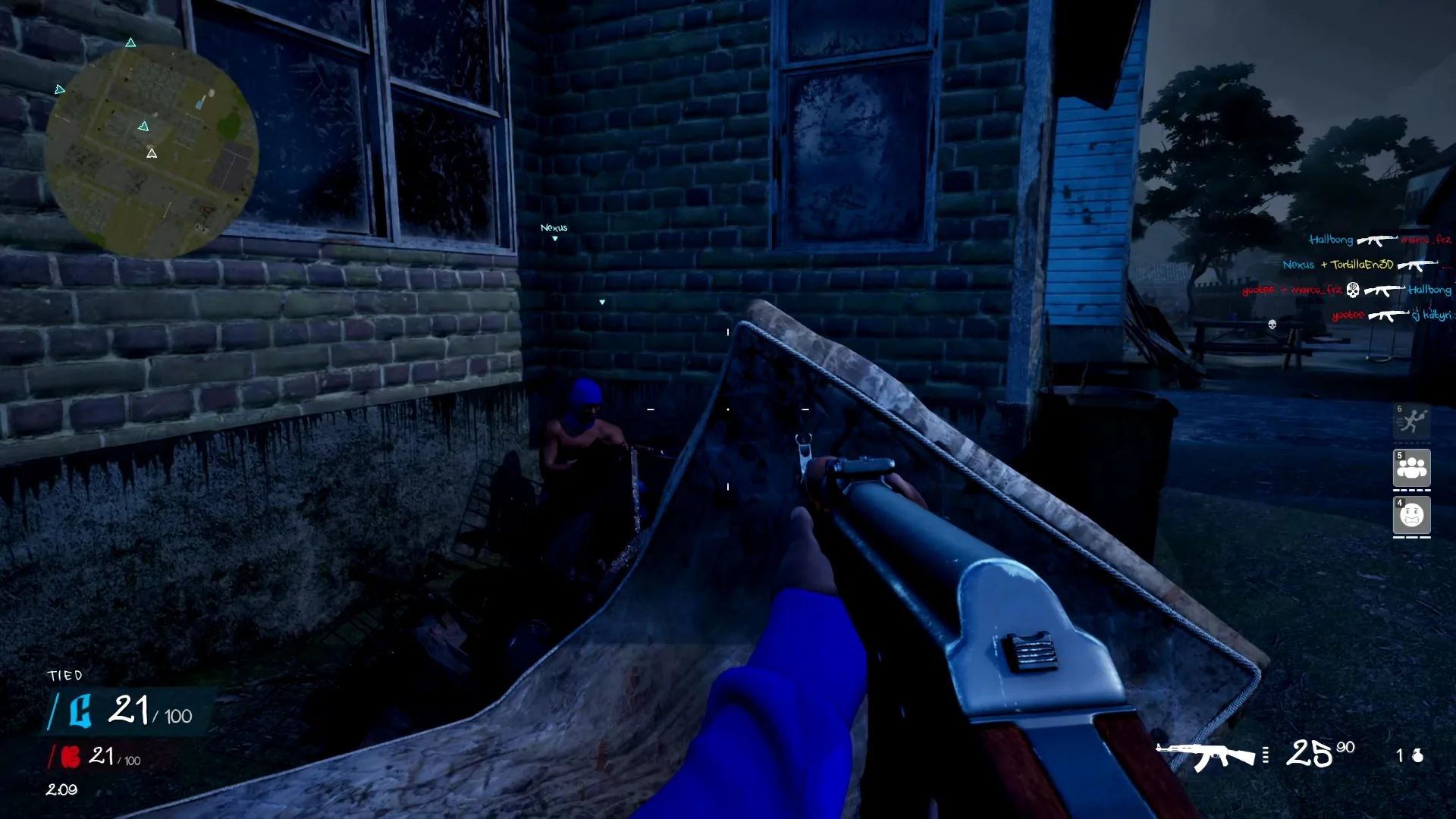
Watch the game state when checking an input; this picture is not a default key chart.
Test an input with a clear result
A bot match is available for checking an action without making an online match your first attempt. Choose a map and mode, add bots through match setup and test one action at a time.
- Identify the action you want to check.
- Read the binding or visible prompt, if the game provides one.
- Press that input once and watch for the expected result.
- Repeat in the same situation so you can distinguish a missed input from a different interaction condition.
- If remapping is offered, change only the binding you need and check the result again.
For objective interactions, being able to fire your weapon does not prove that the objective action is bound correctly. Planting and defusing belong to Destroy The Block's rules, while other modes use different objectives. Read the prompt associated with the action in front of you rather than guessing a shared interaction key.
Keep device configuration consistent
When using a controller, begin with the layout currently selected for the game. A controller configuration that emits keyboard inputs can make an on-screen keyboard prompt refer to the configured key rather than a physical controller button. Check your active configuration before copying a button label.
Do not treat full controller support as evidence of named aim-assist, deadzone, response-curve or sensitivity options. Those settings need their own visible entries. Likewise, movement features such as sliding, leaning or special sprint variants should only go into your personal control list if the game actually offers them.